PP OfficeDocPrintAlways free
Template LibraryBlogHelp & Feedback
  1. Home/
  2. Template Library/
  3. Lunar Task Calendar Template - Lunar Dates + Task Column

Lunar Task Calendar Template - Lunar Dates + Task Column

Why choose the Lunar Task Calendar?

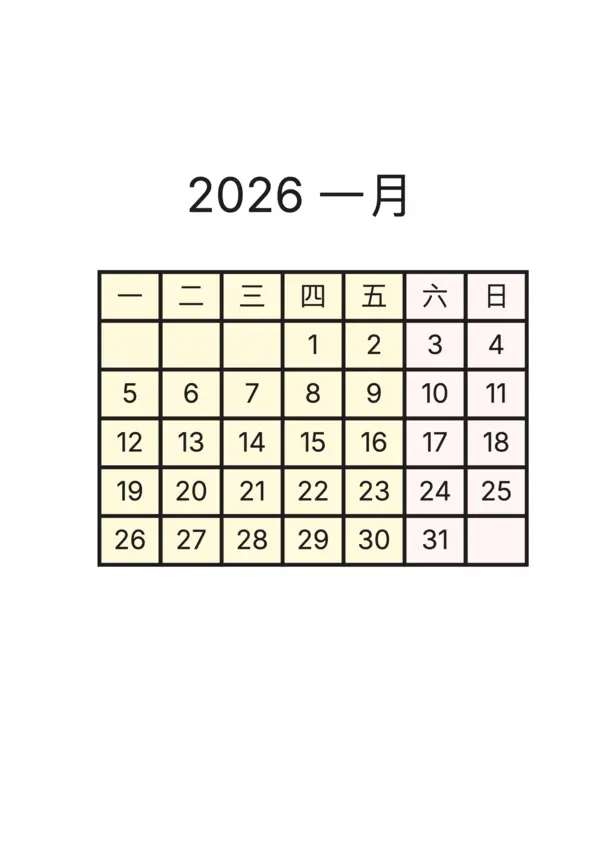
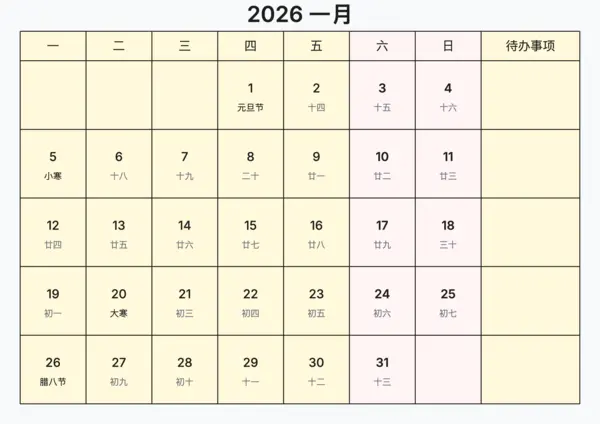
The Lunar Task Calendar combines Gregorian dates, lunar info, and a dedicated task column on one A4 page so you can plan by week while keeping an eye on solar terms and festivals.

Best for

  • Families or individuals tracking both Gregorian and lunar events
  • Teachers and team leads who batch weekly tasks
  • Students preparing for exams around traditional festivals
  • Bullet journal lovers who need a clean monthly overview

How to use

  1. Pick year, month, and week start
  2. Adjust the task column width (1.2x-2.0x)
  3. Toggle lunar/solar-term labels as needed
  4. Export high-res PDF/PNG for printing

Highlights

  • Automatic lunar date, solar term, and public holiday tagging
  • 7 + 1 column grid with configurable task column
  • Weekend columns tinted for quick scanning
  • 300 DPI output for A4/A5/Letter and custom sizes
  • Runs fully in-browser, no account, no watermark

FAQ

Yes, it displays the Solar date prominently with the corresponding Chinese Lunar date and Solar Terms (Jieqi) underneath.
They are task slots. You can use them to list 3-5 key tasks, appointments, or habit checks for that specific day.
Yes, you can select any Year and Month from the control panel to generate calendars for the past or future.
Yes, you can customize the font size for dates and lunar text, making it easier to read or creating more space for writing.

Related Templates

Journal Calendar
Journal Calendar
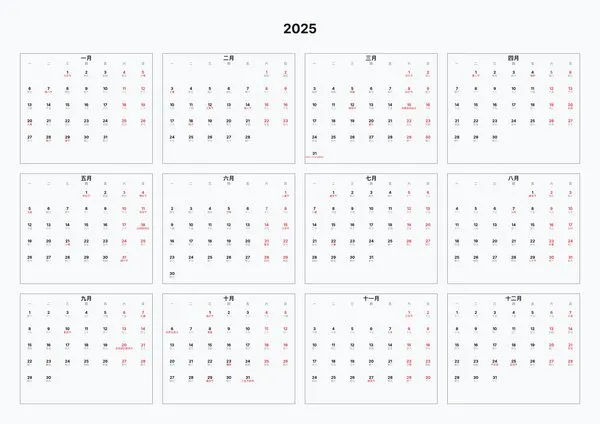
Annual Calendar
Annual Calendar
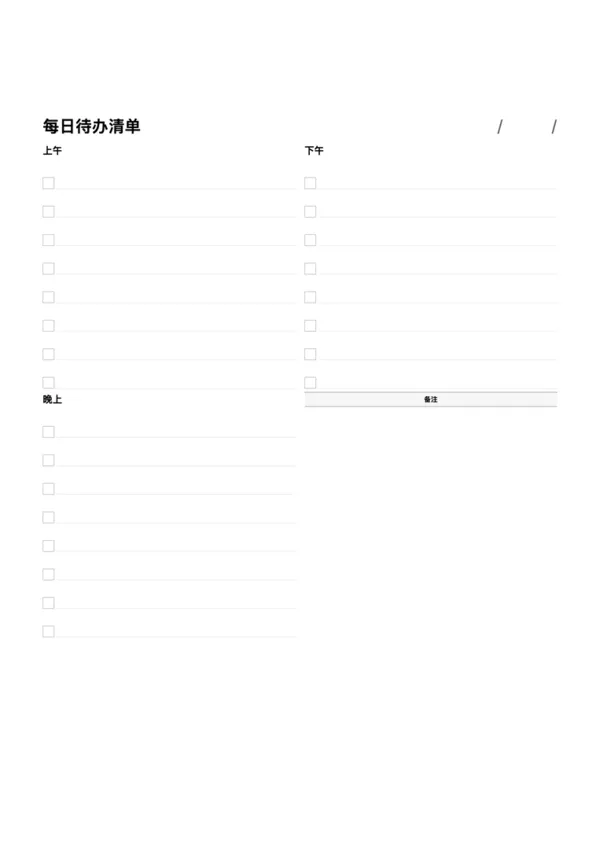
Daily To-Do List
Daily To-Do List
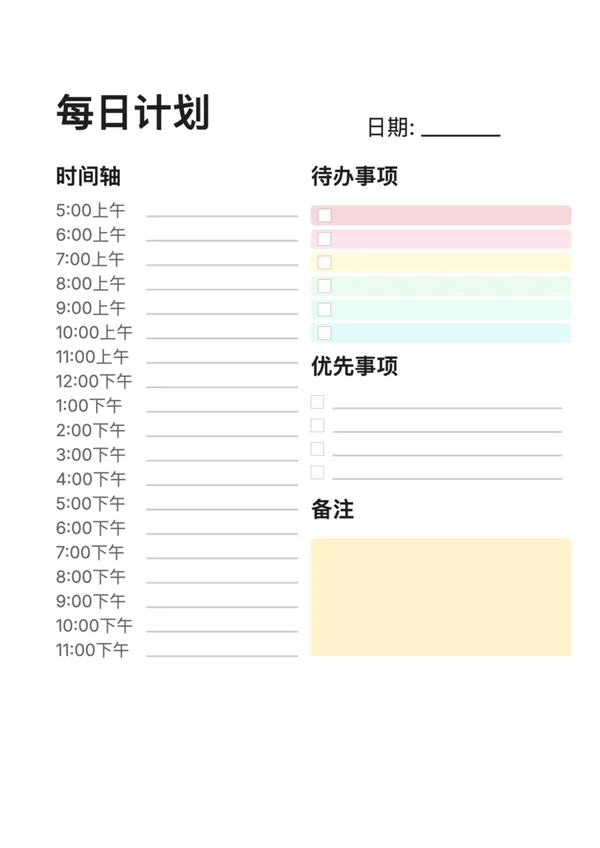
Daily Planner (Journal Style)

Export

Settings
Quick Settings

Recommended Setup

Recommended Setup

For general use, we recommend using default settings on A4 paper. This provides the best balance between usability and print quality.

Adjust the parameters in the control panel to match your specific needs. All settings can be customized in real-time.

Printing Tips

Printing Tips

Paper Selection: For best results, use standard 80-100 gsm copy paper.

Print Quality: Set your printer to 300 DPI or 'High Quality' mode for crisp output.

Test Print: Always print a single test page first to verify settings before printing multiple copies.
OfficeDocPrint

OfficeDocPrint

Printable templates for classrooms, studios, and daily planners.

Product

  • Template Library
  • Changelog
  • OfficeDocPrint Main Site

Resources

  • About Us
  • Help & Feedback

Printable templates for classrooms, studios, and daily planners.

OfficeDocPrint - Privacy PolicyOfficeDocPrint - Terms of Service
© 2025 OfficeDocPrint. All rights reserved.